I recently had an issue that I still do not understand the root cause of.
My OneDrive for Business folder was not syncing and certain files displayed with a red X icon, instead of the happy green Synced icon.
I Uninstalled/Reinstalled 1D4B but still had the issue.
I also found some un-synced files in the Archive folder at:
C:\Users\John Mongell\OneDrive for Business Archives\Thursday, September 25, 2014 - 1\OneDrive
Whats more, each time I tried to access the 1D4B folder in Windows Explorer, a popup for each file would quickly appear and disappear:
It said OneDrive for Business is not responding. Try again in a few minutes.
So, At last, I surfed to the file location C:\Program Files\Microsoft Office 15\root\office15
And typed Groove.exe /clean /all
Then I restarted Groove (OneDrive) by simply typing groove.exe
This caused it to start correctly and asked me to resync my local library.
I confirmed the file locations and resynced, all is good now!
Hope This Helps.
Showing posts with label OneDrive. Show all posts
Showing posts with label OneDrive. Show all posts
Friday, September 26, 2014

Tuesday, April 15, 2014
Using OneDrive for Business Step by Step
A Step by Step guide to setting up your 1D4B sync on Win7 and the end user experience with setting this up.
Click the OneDrive link in your SharePoint or Office365 navigation bar.
Now...Go ahead and Press SYNC... and prepare for a wild ride!

You will see a few 'Working on it' type popup messages like this one...

and this one...
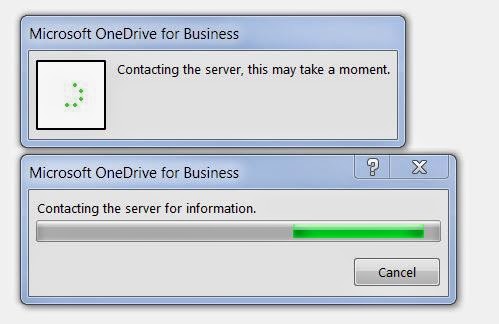

OK. User interaction time!
You will need to click Sync Now button above to "Release the hounds"

Finally... you see a shiny new Explorer Favorites icon for One Drive for Business with your files.

You are ready to work offline. When you update content in these folders, they will auto sync to the cloud if you are connected to the interweb thingy. Thanks to Ray Ozzie and GROOVE.EXE !
Click the OneDrive link in your SharePoint or Office365 navigation bar.
Now...Go ahead and Press SYNC... and prepare for a wild ride!
You will see a few 'Working on it' type popup messages like this one...
and this one...
Now, this last one.
You will need to click Sync Now button above to "Release the hounds"
Depending on how much content you have in your Documents library, it can take a few minutes to SYNC it all. If your online library is empty it should only take a minute or 2.
Finally... you see a shiny new Explorer Favorites icon for One Drive for Business with your files.
You are ready to work offline. When you update content in these folders, they will auto sync to the cloud if you are connected to the interweb thingy. Thanks to Ray Ozzie and GROOVE.EXE !
Thursday, April 10, 2014
How to Unsync a OneDrive for Business object
Why would you want to unsync?
In my case I was syncing some RFP documents from a SharePoint library. We had finished the RFP and I want to now stop syncing and remove the files from my computer.
 Some background:
My computer has both a OneDrive for Business (1D4B) icon and a SharePoint icon. This means I have a MySite OneDrive for Business library synced into my 1D4B icon and I have SharePoint site libraries synced to my SharePoint icon.
Some background:
My computer has both a OneDrive for Business (1D4B) icon and a SharePoint icon. This means I have a MySite OneDrive for Business library synced into my 1D4B icon and I have SharePoint site libraries synced to my SharePoint icon.
To stop syncing a library or something from either of these icons:
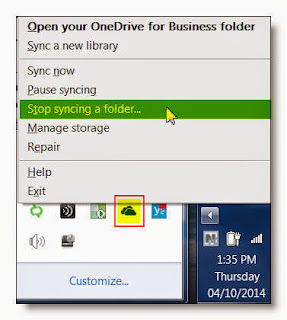
Right Click the OneDrive for Business icon in the Windows notification area, and then click Stop syncing a folder…
 Select the folder you want to stop syncing, and then click Stop syncing.
When you stop syncing a folder, this simply disconnects the folder from its library. All files are retained in the previously synced folder up on the server. You can sync the library to your computer again at any time in the future.
Select the folder you want to stop syncing, and then click Stop syncing.
When you stop syncing a folder, this simply disconnects the folder from its library. All files are retained in the previously synced folder up on the server. You can sync the library to your computer again at any time in the future.
So now that you've done that, the files still remain on your computer but the individual file icons will change from the 'Synced' icons to the standard file icons.
You can now delete these (without any sync error) or keep them, up to you.
If you delete the SharePoint icon it will show up the next time you sync something from SharePoint, so dont worry if you 'accidentally' delete it.
Some background:
My computer has both a OneDrive for Business (1D4B) icon and a SharePoint icon. This means I have a MySite OneDrive for Business library synced into my 1D4B icon and I have SharePoint site libraries synced to my SharePoint icon.To stop syncing a library or something from either of these icons:

Right Click the OneDrive for Business icon in the Windows notification area, and then click Stop syncing a folder…

So now that you've done that, the files still remain on your computer but the individual file icons will change from the 'Synced' icons to the standard file icons.
You can now delete these (without any sync error) or keep them, up to you.
If you delete the SharePoint icon it will show up the next time you sync something from SharePoint, so dont worry if you 'accidentally' delete it.
1D4B vs Win2012R2 Share Folders
In 2013, MSFT Storage Team announced a new feature in Windows Server 2012 R2.
Work Folders enables user to access their work related files on the devices with configured Work Folders no matter whether the devices are joined to a domain or not and whether the devices are connected directly to the corp net or over the internet.
That is a nice upgrade from the Windows XP breifcase right? So, later comes One Drive for Business as a Cloud Based storage solution.
Last week a client of mine asked "Which solution do I implement?"
I gave him the consulting drinking game answer "It Depends".
While at SharePoint Saturday Philly I attended the single most underrated session, Ask the PFE's. where a panel of MSFT'ies answers all your burning questions. Kudos to that team, led by SharePoint Samurai Mike Gannotti @Gannotti
After a round of discussion, this is what the team said: "It Depends"
Crack open a cold one and let's you and I discuss further.
Conclusion:
Until the WorkFolders App is released (unknown) the answer is clear that if you need both device independence with multiple device access, OneDrive for Business is the answer.
If you need internal access only, WorkFolders can be the best solution.
But other than that, I see no reason NOT to go with more functionality you get with OneDrive for Business.
Work Folders enables user to access their work related files on the devices with configured Work Folders no matter whether the devices are joined to a domain or not and whether the devices are connected directly to the corp net or over the internet.
That is a nice upgrade from the Windows XP breifcase right? So, later comes One Drive for Business as a Cloud Based storage solution.
Last week a client of mine asked "Which solution do I implement?"
I gave him the consulting drinking game answer "It Depends".
While at SharePoint Saturday Philly I attended the single most underrated session, Ask the PFE's. where a panel of MSFT'ies answers all your burning questions. Kudos to that team, led by SharePoint Samurai Mike Gannotti @Gannotti
After a round of discussion, this is what the team said: "It Depends"
Crack open a cold one and let's you and I discuss further.
The following
table discusses how various Microsoft sync technologies are positioned and when
to use each.
Work Folders
|
Offline Files
|
SkyDrive Pro
|
SkyDrive
|
|
Technology summary
|
Syncs files that
are stored on a file server with PCs and devices
|
Syncs files that
are stored on a file server with PCs that have access to the corporate
network (can be replaced by Work Files)
|
Syncs files that
are stored in Office 365 or in SharePoint with PCs and devices inside or
outside a corporate network, and provides document collaboration
functionality
|
Syncs personal
files that are stored in SkyDrive with PCs, Mac computers, and devices
|
Intended to provide user access to work files
|
Yes
|
Yes
|
Yes
|
No
|
Cloud service
|
None
|
None
|
Office 365
|
Microsoft
SkyDrive
|
Internal network servers
|
File servers
running Windows Server 2012 R2
|
File servers
|
SharePoint
server (optional)
|
None
|
Supported clients
|
PCs and devices*
inside or outside a corporate network
|
PCs in a
corporate network or connected through DirectAccess, VPNs, or other remote
access technologies
|
PCs, iOS,
Windows Phone
|
PCs, Mac
computers, Windows Phone, iOS, Android
|
*Work Folders apps
not yet announced.
Until the WorkFolders App is released (unknown) the answer is clear that if you need both device independence with multiple device access, OneDrive for Business is the answer.
If you need internal access only, WorkFolders can be the best solution.
But other than that, I see no reason NOT to go with more functionality you get with OneDrive for Business.
Subscribe to:
Posts (Atom)