Thursday, April 10, 2014

1D4B vs Win2012R2 Share Folders

In 2013, MSFT Storage Team announced a new feature in Windows Server 2012 R2.
Work Folders enables user to access their work related files on the devices with configured Work Folders no matter whether the devices are joined to a domain or not and whether the devices are connected directly to the corp net or over the internet.

That is a nice upgrade from the Windows XP breifcase right? So, later comes One Drive for Business as a Cloud Based storage solution.

Last week a client of mine asked "Which solution do I implement?"

I gave him the consulting drinking game answer "It Depends".

While at SharePoint Saturday Philly I attended the single most underrated session, Ask the PFE's. where a panel of MSFT'ies answers all your burning questions. Kudos to that team, led by SharePoint Samurai Mike Gannotti @Gannotti

After a round of discussion, this is what the team said:  "It Depends"

Crack open a cold one and let's you and I discuss further.

The following table discusses how various Microsoft sync technologies are positioned and when to use each.


Work Folders
Offline Files
SkyDrive Pro
SkyDrive
Technology summary
Syncs files that are stored on a file server with PCs and devices
Syncs files that are stored on a file server with PCs that have access to the corporate network (can be replaced by Work Files)
Syncs files that are stored in Office 365 or in SharePoint with PCs and devices inside or outside a corporate network, and provides document collaboration functionality
Syncs personal files that are stored in SkyDrive with PCs, Mac computers, and devices
Intended to provide user access to work files
Yes
Yes
Yes
No
Cloud service
None
None
Office 365
Microsoft SkyDrive
Internal network servers
File servers running Windows Server 2012 R2
File servers
SharePoint server (optional)
None
Supported clients
PCs and devices* inside or outside a corporate network
PCs in a corporate network or connected through DirectAccess, VPNs, or other remote access technologies
PCs, iOS, Windows Phone
PCs, Mac computers, Windows Phone, iOS, Android
*Work Folders apps not yet announced.


Conclusion:
Until the WorkFolders App is released (unknown) the answer is clear that if you need both device independence with multiple device access, OneDrive for Business is the answer.
If you need internal access only, WorkFolders can be the best solution.
But other than that, I see no reason NOT to go with more functionality you get with OneDrive for Business.


Wednesday, March 26, 2014

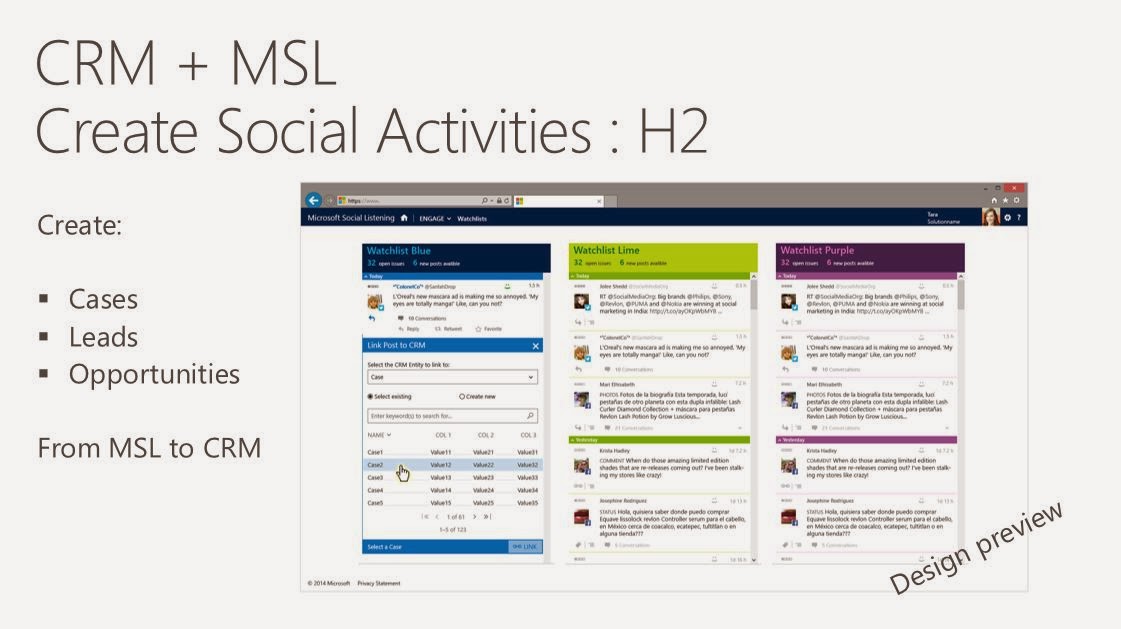
Microsoft Social Listening MSL for Dynamics

I want to share a new product that MSFT is planning to roll out to GA Q2 or Q3 2014.
This new product comes about as a result of a few important acquisitions for Microsoft.
First, Parature, a leading cloud based customer self-service portal is exactly something Dynamics CRM has been in need of providing.
Second and third are 2 social engineering start ups NetBreeze and InsideView.

These screens are very new, so expect them to change!
Microsoft Social Listening is a way to provide users with BI Analytics of social activity and tie it to a CRM record. Wow. Twitter Analytics in Excel was just a bit of what MSL can provide from a BI perspective. But the sheer volume was exhausting even for PowerBI for the end user. My PowerBI Twitter Analytics data refreshes were taking 10 minutes. MSFT has invested heavily in the Twitter firehoses, something the start ups could not afford, so these posts are 'near' real time.
Shout out to Girish Raja for his teams efforts and the slides from SPC 284

The last screen is where you map the post to a CRM record.


Wednesday, March 12, 2014

SharePoint 3rd party Product Announcements made at the 2014 SharePoint Conference


A flurry of new product announcements were made at SPC14. Here are a few of the big players...

ShareGate
I spoke with owner Benjamin Niaulin while on the bus to the Las Vegas Speedway where he suggested downloading all available tools now and letting them auto update. They are a SCRUM team, so they release patches biweekly.

The biggest request from his no-brainier migration tool was to truly make it no-brainier and make all features available in PowerShell. This gives you the ability to schedule a migration task. The announcement the next morning came via email that they released PowerShell utilities and I was ecstatic that our customer who use Layer2.de with it's horrible support can now use ShareGate, which costs less and who's Help and Buttons are not written in German! 
  • PowerShell Commands 
  • Scheduling made possible through PowerShell 
  • Choice Column values copied even if a choice is no longer available 
  • Export to Excel let’s you Merge documents, rename them or move them 

Harmon.ie 
launches first enterprise collaboration hub. The product has come a long way, but not long enough in my mind. 


Yaccov Cohen created a first ever SharePoint Top Influencers list. Dignitaries include Marc Anderson, Jeremy Thake, Scot Hilier…but they didn't include the Bottom Influencers list, who could include Chris McNulty, Mike Gilronan and myself.

Bamboo Solutions
The latest version of Bamboo Solutions’ process automation solution is now available for SharePoint 2013. Bamboo Workflow Conductor 3.5 allows users to create, manage and reuse custom business processes without having to do custom coding. 

K2 
announces K2 Appit release, delivering no-code workflow apps for Microsoft SharePoint Server 2013 and Microsoft SharePoint Online, in the cloud.

KnowledgeLake 
expands Office 365 capabilities for SharePoint ECM suite of products
KnowledgeLake has announced it is bringing the power and functionality of KnowledgeLake Imaging to Office.  
Metalogix 
Metalogix announced a complete solution to move e-mail, files and SharePoint content to Microsoft Office 365. Metalogix has expanded its suite of content and collaboration tools with the announcement of Email Migrator 3.0 and Content Matrix 7.0, which work together, or independently to expedite the migration of email, files and SharePoint into Office 365 and better enable an organization’s.

Qbase 
Qbase LLC, a leading provider of information technology and business intelligence solutions, today announced the launch of MetaCarta for SharePoint 2013, a plug-in enrichment service that geo-enables both structured and unstructured content inside the SharePoint 2013 environment

Tuesday, March 11, 2014

SharePoint Conference 2014 Recap

Last week I attended the 2014 SharePoint Conference. 
This was my second SPC and I was able to pace myself enough to keep much better notes up until the last day. Last year I had burned out early, as there is only so many sessions one can attend in a week, my mind was numb. I attended a variety of sessions including Executive, ITPro, Developer and Business User. I think this was the reason why my last SPC was so difficult for me by the final day, as I had attended pure ITPro and Developer sessions and took 2 tests, whew! Exhausting.

Keynote
The Keynote was delivered by President Bill Clinton who encouraged us to "do good" while making advancements with our technology. He impressed us with examples of how technology assisted The Clinton Foundation's efforts in (among a few) post earthquake Haiti to align the country's only mobile provider with the Dutch bank so that people can have access to banking and their money. 
Basically, make the world a better place with technology. 
(See 'Matrix Reloaded' and 'IronMan' and 'Hitchhikers Guide to the Galaxy' movies for shining examples of how Technology can Do Good)


User Voice 
There were many product announcements made, which I will blog separately. The single most impressive take away for me was the incredible openness and reaching out that the MSFT Office and SharePoint teams expressed with the attendees. It was very refreshing. My Tweets were answered and favorited by those teams many times. In fact, When Sonya Koptyev announced the UserVoice site at the InfoPath Roadmap session we were blown away that they had launched an entire site dedicated to our user feedback.

Office Social Graph and Oslo
The next BigThing was the OpenGraph and Oslo. This blew my mind because of the nature of an app fabric that connects content with Users, AD and Yammer activity feeds. The code name Oslo is the display method for the Announcements on steroids style view that is so exciting, blogs are sprouting up about it like mad daily. 

Connecting Content through People
Oslo is a search technology mostly, and it inspires us to search for people instead of document names or metadata. Content is trending around people, or me. People present content to me. I search for these trends and OfficeGraph filters and bubbles content that I want to see through Oslo display templates.


Friday, February 7, 2014

SharePoint 2013 inline search and AAM

Ran into an interesting issue with inline search not working for a client and learned a couple things about it...


Inline search for any list or library produced no results. No errors appeared in logs, just no results.


I went to logs and found everything working perfectly:

Microsoft.Office.Server.Search.Query.Ims.ImsQueryInternal :
Number of tables in Result: 1, Relevant Results: 0, Refinement Results: 0

No Results?? But there is content there... and the regular search works fine and returns these results! ..now what??

After much head scratching, I looked at the Alternate Access Method.

They had recently added an AAM. The site's AAM had these two entries:

Default Zone mapped to http://sp2013 (which is the machine name)

Intranet Zone mapped to http://atlas
I edited the Default Zone, changing it from sp2013 to atlas and the AAM for Intranet went away and all that was left was Default.

Immediately,  the inline search started working again.


Another thing that I learned is that the Inline Search box will only show up if the Web Part Style is Default. So if you change the web part style to Banded or Preview or Newsfeed something other than Default, you wont have the inline search at all.

Friday, January 17, 2014

How to remove animations in Win2012

I sometimes notice, especially during Remote Desktop sessions, that the Windows 2012 animations annoy me due to their slow rendering.
To disable them, this needs to be applied in order to remove the slow animations.
Note that this applies to the current user account only.

 Control Panel > System > Advanced > Advanced > Visual Effects


Wednesday, January 8, 2014

Shared With and SHARE issues


I recently was requested to hide all instances of the Shared With pop up window from users. The client did not want anyone to see the names of admins and other individuals that had direct permissions.

There are 2 ways to hide, one using straight CSS and another manipulating via jQuery.


Using CSS
We found this here: .li > text."Shared With"

/*Hiding the SharedWith stuff */
.js-callout-sharedWithInfo{
display:none !important;
}

Using jQuery

$('.js-callout-sharedWithInfo').css('display','none');

        <script type="text/javascript">
        $(document).ready(function(){
                $('.js-callout-sharedWithInfo').css('display','none');
                });

        </script>

Along the same lines, we wanted to have the Send an Email link that is checked by default to be unchecked.

In order to void your warranty and change the default behavior of the SharePoint SHARE feature to UNCHECK the Send Email box...
Note that a PU or a CU may overwrite this file at anytime...which is what I sort of mean by "void your warranty".

Go to the file...
C:\Program Files\Common Files\Microsoft Shared\web server extensions\14\TEMPLATE\LAYOUTS\actinv.aspx

And change changed the Checked="true" to Checked="false" 

<div class="ms-core-form-subsection">
<asp:CheckBox
runat="server"
id="chkSendEmailv15"
Checked="true"
class = "ms-aclinv-checkbox"
OnClick="UpdateSendEmailMessage()"/>
<label for=<%SPHttpUtility.WriteAddQuote(SPHttpUtility.NoEncode(chkSendEmailv15.ClientID),this.Page);%>>
<SharePoint:EncodedLiteral runat="server" text="<%$Resources:wss,aclinv_SendEmailCheckboxv15%>" EncodeMethod='HtmlEncode'/>
</label>

Wednesday, November 20, 2013

Office Repair for Lync 2013 popping up

I have Office 2013 installed on my Win7 Enterprise laptop, but along the way I failed to properly uninstall OneNote 2010 and some other components of Office 2007, like the Calendar Print Assistant.
The other day I decided to clean the GAC as it were, and Remove those 2010 and 2007 vestiges.
Since then, Lync 2013 keeps randomly popping up on top of other programs.
I needed to Use Office Repair feature to resolve and reboot.
Go To Add/Remove (start>run>appwiz.cpl)
Repair Office 2013.
Reboot.
No more pop ups.

Monday, November 18, 2013

IE11 Anime video and the IE8 End Of Life

This just in from MSFT and the O365 team...

Office 365 will no longer support Internet Explorer 8 after 8 April 2014.


For the best, richest experience with Office 365, we strongly recommend that you upgrade to the latest version of Internet Explorer. Internet Explorer 10 is available now, and Internet Explorer 11 is coming soon. Modern versions of Internet Explorer offer faster web browsing, integrated spell-checking, improved security, and more. Internet Explorer 8 users will not be blocked from connecting to Office 365 after 8 April 2014; however, Internet Explorer 8 users should expect slower performance with Office 365’s Outlook Web App and other Office Web Apps.


If you experience a technical problem connecting to Office 365 from Internet Explorer 8 after 8 April 2014, Microsoft Customer Support and Service may need you to reproduce the problem on a supported browser.


Anime Festival Asia Special Video - feat. Inori Aizawa

Friday, November 15, 2013

How to create departmental sub sites in O365

You just spun up a new O365 Tenancy and now you need to populate it for the client. ( P1, E1, doesn't matter here. This pertains to all types.)

You are also tasked with creating secured sub sites for the Intranet.

Presume for a moment that you've already had the discussion of what they want for a taxonomy with the SharePoint catalyst at the organization, by catalyst, I mean the Steering Committee, champion or leader.
For instance, they could direct you with " I want an, Admin Site, two Product sites and a Finance site and an HR site"


Ideally, you would want that person to email you an excel that looks like this to allow you to successfully create the new groups and apply the permissions. This could take some time to get, but provide them with this one, empty for them to fill out, and you might get a quick response.

SharePoint Group
Administration Site
Product Line A
Product Line B
Finance
Human Resources
Owners
Steve Doran
Helen Amaral
Debra Murphy
James Financier
Holly Francis
Members
Mindy Loo
Jocelyn McDoon
Katherine Baxter
Jordan McCluskey
James Duby

Talli Evangelista
Janet Caponata
Brenda Fleming
Heather Klugh
Shah Fariz


Doral Comeau
Gabriel Lopez


Ann Comton
Janet Moore


Visitors
All Employees
All Employees
All Employees
nobody
nobody


nobody
nobody


With that in hand, follow the below steps to create the sub sites:

Log into the site using the admin credentials
Using the Gear icon in the utility area, select Site Contents


Scroll to the bottom of this page and you will see where they hid the link to create a new Sub Site ;-)


Here you can name your subsite and set up security and navigation options


You now are asked to populate the new Security Groups.


You can individually add users here, but if you have a lot of users, this can take a long time.
Fortunately you have options.
1.      Windows Azure Powershell - See Blog Post on  'Howto configure O365 user passwords to never expire'
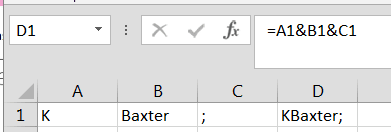
2.      Excel reformatting trick to get names to be able to paste into the People Picker box.
a.      You need to get your usernames in the format of email address or FirstInitial+LastName>
b.      To get that from "John Mongell" pop it into excel, Text to Columns, Space Delimited.
c.      Now take those two rows and split the first on delimited by first character.
d.      Now join that new initial with the last name column and append ";" 
example


After you click OK, your site will be provisioned.
Go back to the TOP LEVEL and do it again for the next site, but be sure to know where you are provisioning from!

 You don’t want to provision a sub site underneath the site you just created if it was supposed to be closer to the top.

Monday, November 11, 2013

SPSRI - Dynamics CRM and SharePoint integration

SPSRI - Dynamics CRM and SharePoint integration

I was excited when my speaker submission came back as accepted for SPSRI, a first time that Rhode Island has hosted a SharePoint Saturday and a first time that I have been accepted to speak.
I immediately pondered; 'OK, so what topic should a newb present that has not already been presented at one of these events?
I decided that since I have deployed countless Dynamics CRM + Sharepoint installations and have internally presented on the subject and written whitepapers on it. I would present this as a Best Practice and HowTo type of presentation.

As I said, this was my first time presenting at a SPS event so I concerned that there would be some Incognito hazing going on. But the speaker gods of the Northeast were kind, as well as Jason Himmelstein, Josh Cliff and Christopher McNulty,  and I escaped their wrath.
Plus, having my colleague Mike Gilronan along was a tremendous help. Absolutely read his recap, as it was quite poignant.

SharePoint integrates very nicely with Dynamics CRM and solves collaboration issues that we have seen with the other Customer Relationship Management system, called SalesForce. Our SF users often complain that SF lacks versioning and findability on entity documents. This is where DynamicsCRM + SP excels.
As promised, here is the slide deck that I presented.


Friday, November 8, 2013

Using OMPM or How to bulk convert Pre OpenXML formats to docX or xlsX

We recently performed a migration to O365 for a client with Office 2003. Their Office files were still in the old format, xls without the ending X. This is a Pre OpenXML format and you cannot view these files in Office WebApps. When the client uploaded them to SharePoint Online, they are forced to download them to view them.

We needed to either individually open each of the 1000 Office documents and 'Save As xslx, docx, pptx' or we would have to find a way to bulk convert these.

Fortunately for us, we did not have to convert their 1000's of files individually, and used a tool from MSFT for this purpose called the Office File Converter (OFC.exe) which is available from the OMPM suite.

Here are the steps that we needed to do.


Download Office Migration Planning Manager (OMPM) to the machine that hosts the files.
From <http://www.microsoft.com/en-us/download/details.aspx?id=11454>

The installer extracts all tools and resource files by default to C:\OMPM
If your machine does not have Office 2003 installed, which by now it probably does not, then you will also need to install the Office compatibility pack to convert the files.
http://support.microsoft.com/kb/923505


Once that is installed, open the C:\OMPM\Tools folder that contains tools the Office File Converter (OFC) and Version Extraction Tool (VET)


Following this guide for more information:


Using OMPM tools

Use the Office File Converter (OFC) to do bulk conversions of specific Office files that are in version 97 through 2003 file formats to the Office 2010 file formats.
http://technet.microsoft.com/en-us/library/cc179179(v=office.14).aspx

Using the tool is a bit tricky. You really need to look at the documentation in the ini file.


One of the tricks was to ALSO include the FOLDER location from that INI file

For the OFC.exe to work there must be a [FoldersToConvert] entry in the OFC.INI file.
Fldr=C:\OMPM\TOOLS\EXAMPLE FOLDER\ (in this case I put all the files I wanted to convert into the “EXAMPLE FOLDER”)

You can put multiple folders under this folder,
OFC.exe will follow this path a convert all DOC and XLS files into DOCX and XLSX files. 
It will leave the old DOC file in the folder and create the new DOCX file right alongside.
The date created field will NOT change for the new DOCX or XLSX files

All the new files will be created in the appropriate folder, even if there are multiple layers of folders under the original location

In this case, the SourcePathTemplate and the DestinationPathTemplate listings in the OFC.INI file are just:
SourcePathTemplate=*\*\*\*\


DestinationPathTemplate=*1\*2\*3\*4\

Monday, October 28, 2013

SharePoint Open PDF in Browser

Occasionally we get a user asking us why a PDF prompts to be saved instead of opening when they click on it from a website in a browser, any browser, not just IE or FF.


The answer is 50% because of an Adobe setting and 50% because of an Internet Explorer setting.

FireFox and Chrome do not have the browser issue, only IE requires the site name with the PDF be added to Trusted Sites.


The IE setting:
Add the site in question to the Trusted Sites list.
In IE, choose Tools > Internet Options and add the site to the Trusted Sites list.
Restart the browser.


The Adobe setting:
It is important that you have the latest Adobe software first off. Check the Taskbar icon to see if an Adobe update is pending. Often times an update to Adobe is already queued up and pending the user to just click the little A icon in the taskbar and continue the update.
Next is the critical piece of this "Open in browser" puzzle.

Open Adobe (either by "Start > All Programs > Adobe" or by just opening a PDF stored on the computer.
Then edit the preferences and assure the Checkbox is CHECKED for Display PDF in Browser:
From the Menu, click EDIT > Preferences

Then Check the box and close and close and reopen the browser.


Close the browser and reopen it.


Test, issue should be resolved.

Tuesday, October 1, 2013

How to configure passwords to never expire in O365

Install the Windows Azure AD Module

You must install the appropriate version of the Windows Azure AD Module for Windows PowerShell for your operating system from the Microsoft Download Center:
Windows Azure Active Directory Module for Windows PowerShell (32-bit version)
Windows Azure Active Directory Module for Windows PowerShell (64-bit version)

Start the Windows Azure Active Directory Module for Windows PowerShell


Connect to Windows Azure Active Directory

Type connect-msolservice …and log in with your admin account
Review: the TechNet Article for a list of available commands
http://technet.microsoft.com/library/jj151815.aspx

Run the following command to GET a specific user's Password Expiration Policy:
Get-MSOLUser -UserPrincipalName user@company.com | Select PasswordNeverExpires

Run the following command to GET ALL User's Password Expiration Policy:

Get-MSOLUser | Select UserPrincipalName, PasswordNeverExpires
Run the following command to SET a User's Password Expiration Policy:

Set-MsolUser -UserPrincipalName [user@company.com -PasswordNeverExpires $true


TIP: if you love Get-Help then you will need to add it: 

To create a folder for help, list the cmdlets, and then open the file in notepad, you can run the following commands at the Windows PowerShell command prompt:
new-item c:\MSOLHelp -type directory
get-command | Where-Object {$_.name -like "*msol*"} | format-list | Out-File c:\MSOLHelp\msolcmdlets.txt
notepad c:\MSOLHelp\msolcmdlets.txt

Monday, August 5, 2013

Export Solutions from farm

Recently a client 'accidentally' deleted the solutions that we installed on their farm.
Not from SharePoint, but the actual wsp files that we copied to their server. 
These are useful to have in case someone 'accidentally' removed the solution.
We can recover installed solutions from Powershell.


$dirName = "e:\exportedfiles"

foreach ($solution in Get-SPSolution)
{
$id = $Solution.SolutionID
$title = $Solution.Name
$filename = $Solution.SolutionFile.Name

try {
$solution.SolutionFile.SaveAs("$dirName\$filename")
Write-Host " – done" -foreground green
}
catch
{
Write-Host " – error : $_" -foreground red
}
}


This will populate your $dirName with wsp files from the farm.Files are now back, and you dont need to restore the VM!

Wednesday, July 31, 2013

SharePoint 2013 dbghelp.dll issue

Issue:
SQL Event logging dbghelp.dll messages every second, or multiple msgs per second.

Solution:
Reduce the time they are logged.


The Database Performance Metric Timer Job runs every minute. This was throwing the message into SQL. This appears to be a bug with SharePoint 2013 on premise. The 'workaround' is to Change the frequency of the Timer Job to Daily, rather than the default of every minute.

I found this to be the most helpful post and provided the person that had incorrectly set the Answered post with an update to the lower most post marked as Helpful that actually resolved this.

http://social.technet.microsoft.com/Forums/sharepoint/en-US/6060757a-9832-4d28-8719-c24862ef7de9/sql-2012-standard-with-sharepoint-2013-error-message-filling-sql-log-using-dbghelpdll-version


By "reduced" I mean until midnight when the Timer job associated with the issue will run again. 

Thursday, July 11, 2013

XSLT Problem with Windows KB2844286

If you have any clients on the Automatic Tuesday Windows Update cycle, and they are running SharePoint on premise, please be aware of a critical issue that occurred at one of our clients as a result of the June 11th Updates that were installed last night.

It will be very obvious, the WebPart Header will display OK, but all contents in the webpart disappear and will instead show an error


Error while executing web part: System.NullReferenceException: Object reference not set to an instance of an object. at System.Xml.Xsl.XslCompiledTransform.Load(MethodInfo executeMethod, Byte[] queryData, Type[] earlyBoundTypes) at Microsoft.Xslt.STransform.GetCompiledTransform() at Microsoft.SharePoint.WebPartPages.BaseXsltListWebPart.LoadXslCompiledTransform(WSSXmlUrlResolver someXmlResolver) at Microsoft.SharePoint.WebPartPages.DataFormWebPart.GetXslCompiledTransform() at Microsoft.SharePoint.WebPartPages.DataFormWebPart.PrepareAndPerformTransform(Boolean bDeferExecuteTransform) 5962a0e6-2114-4dad-9682-5b327c6e47e1


The Solution
Go To Control Panel, Programs> Programs and Features > View installed Updates
In the Windows section, find Windows KB2844286
Uninstall it. (And you may want to disable Automatic Updates)


open elevated Command Prompt and run IISRESET

Friday, June 7, 2013

PowerShell Online

Set up the SharePoint Online Management Shell environment for SharePoint Online global administrators.
Love It!

Perform the following:


Try it out! For example, run Get-SPOSite to get a list of all sites.

Tuesday, April 2, 2013

Open in Windows Explorer not available after IE10 update

Problem:
The “Open with Windows Explorer” feature for a library no longer works on your SharePoint site

Cause:
We usually put the company SharePoint site in the Intranet Zone.
For some bizarre reason, MSFT decided that in IE10 they are going to force Compatibility View on all sites in this zone.


Solution:
In IE, go to Tools> Compatibility View settings:
1. Remove any sites in there that you don’t want in there
2. Uncheck Display intranet sites in Compatibility View


3. I prefer to uncheck that last interesting one, as I would rather MSFT did not decide what list of sites should be placed here for me.